Smart Jira Issue FAQ
Common questions about Dirty Agile tools for Confluence.
I see "Couldn't reach Jira" / a 403 error — what do I do? ▼
The macros live in Confluence, but they read live data from Jira. If the app hasn't been installed on Jira yet — for example, if you were asked during setup whether to install it only on Confluence or also on Jira and Jira Service Management, and chose Confluence only — a site or organization admin needs to do that now. This is also the fix if you see a "Couldn't reach Jira" error, and it only needs to be done once.
-
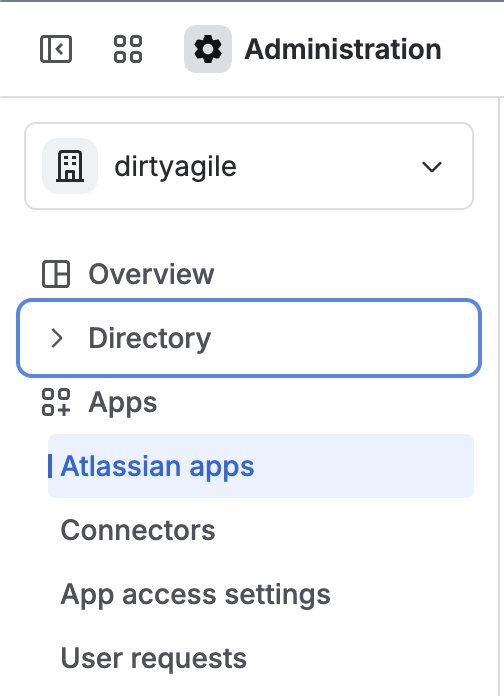
Go to admin.atlassian.com, select your organization, then go to Apps → Atlassian apps in the sidebar.
-
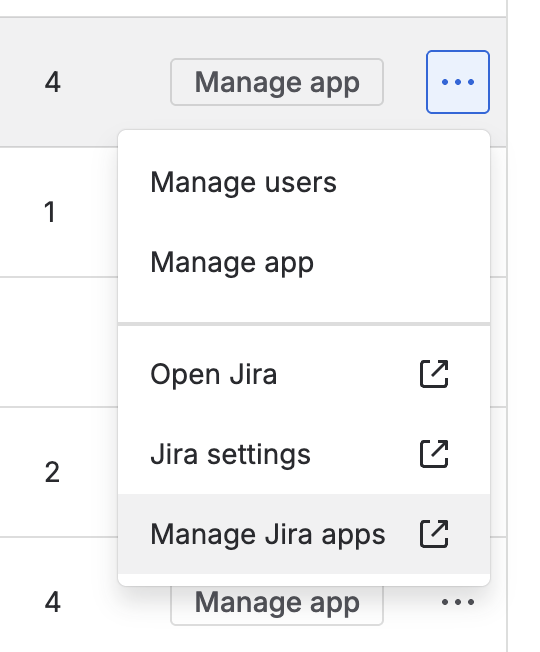
Find Jira, click the ⋯ menu next to it, then choose Manage Jira apps.
-
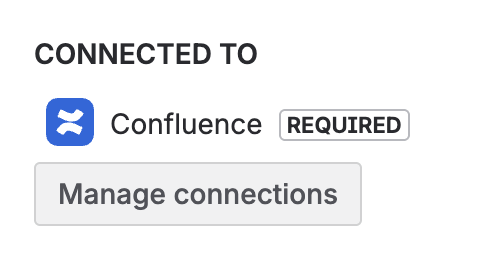
Find Smart Jira Issue for Confluence in the list (it may still show as "Smart issue view for Confluence"), open View app details, then under "Connected to" click Manage connections.
-
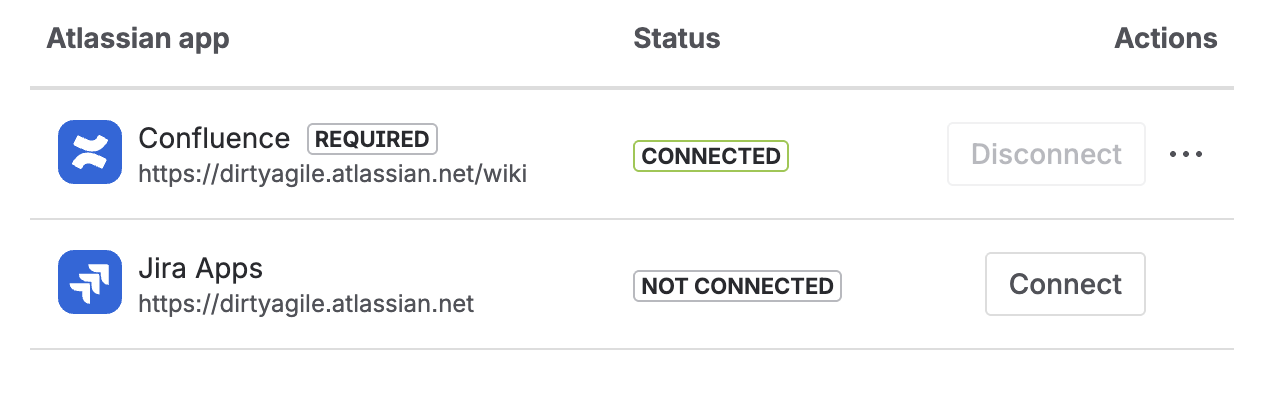
Find the Jira Apps row and click Connect.
I'm migrating from the old version (Connect). What changed? ▼
The app has been fully rebuilt on Atlassian Forge. Here's a summary of what's different:
- No more LITE vs. FULL split — there is now a single app. If you were on LITE, you are eligible for a discount on the new version.
- No Configurable macro for new insertions — existing pages with the Configurable macro continue to render, but you can no longer insert new ones. Use the Smart Jira Issue macro instead.
- No manual authorization — the OAuth consent flow is gone. The macro works automatically via Atlassian Forge's built-in auth.
- Inline editing removed — clicking an issue key or summary opens the issue in Jira in a new window instead of a dialog.
- Children view and Filter view work the same as before.
How to insert Smart Jira issue macro? ▼
Using /jj shortcut is the fastest way to insert the Smart Jira Issue macro directly into the Confluence editor.
What's the difference between Smart and Configurable macros? ▼
Smart Macro is the current macro and the only way to insert Smart Jira Issue on new pages. It works out-of-the-box by copy & pasting the issue URL onto a Confluence page. It analyzes your Jira instance and displays only the fields that are actually populated, hiding empty ones to keep your documentation clean.
Configurable Macro is a legacy macro from the previous Connect-based version. Existing pages that use it continue to render correctly, but new Configurable macros can no longer be inserted.
Can I still use the Configurable macro? ▼
Existing pages that already have a Configurable macro will continue to render correctly — no action needed.
However, you can no longer insert new Configurable macros. For new pages, use the Smart Jira Issue macro instead, which lets you configure exactly which fields to display.
Do I need to authorize the plugin? ▼
No. The Forge-based version handles authorization automatically via Atlassian's built-in mechanisms. There is no OAuth flow and no consent screen to go through. The macro displays your Jira data as soon as you place it on a page.
Where is my data stored? Is it secure? ▼
Smart Jira Issue runs on Atlassian Forge — the official Atlassian serverless platform. Your Jira data never leaves Atlassian's own infrastructure. There are no third-party servers involved and no OAuth tokens stored externally.
The app carries the official "Runs on Atlassian" badge, which means it meets Atlassian's security and compliance requirements for Forge apps.
Can I display Jira filter results? ▼
Of course. An ability to display Jira filter results is embedded in the "Smart Filter&Children View" macro.
You can search either for an issue parent or a filter name directly from the macro browser.
How can I make a feature request? ▼
You can create all kinds of requests (bugs, new features, improvements, questions) using our Customer Portal available at:
https://dirtyagile.atlassian.net/servicedesk/customer/portal/1