
Documentation
JSM Portal Extras — How it works
What this app does
The Jira Service Management Customer Portal doesn't show customers who's assigned to their request, gives them no signal about whether a request type is meant to stay private, and never mentions issues linked to their request. JSM Portal Extras adds all three, as read-only panels on the existing portal — it doesn't change how your service desk itself works.
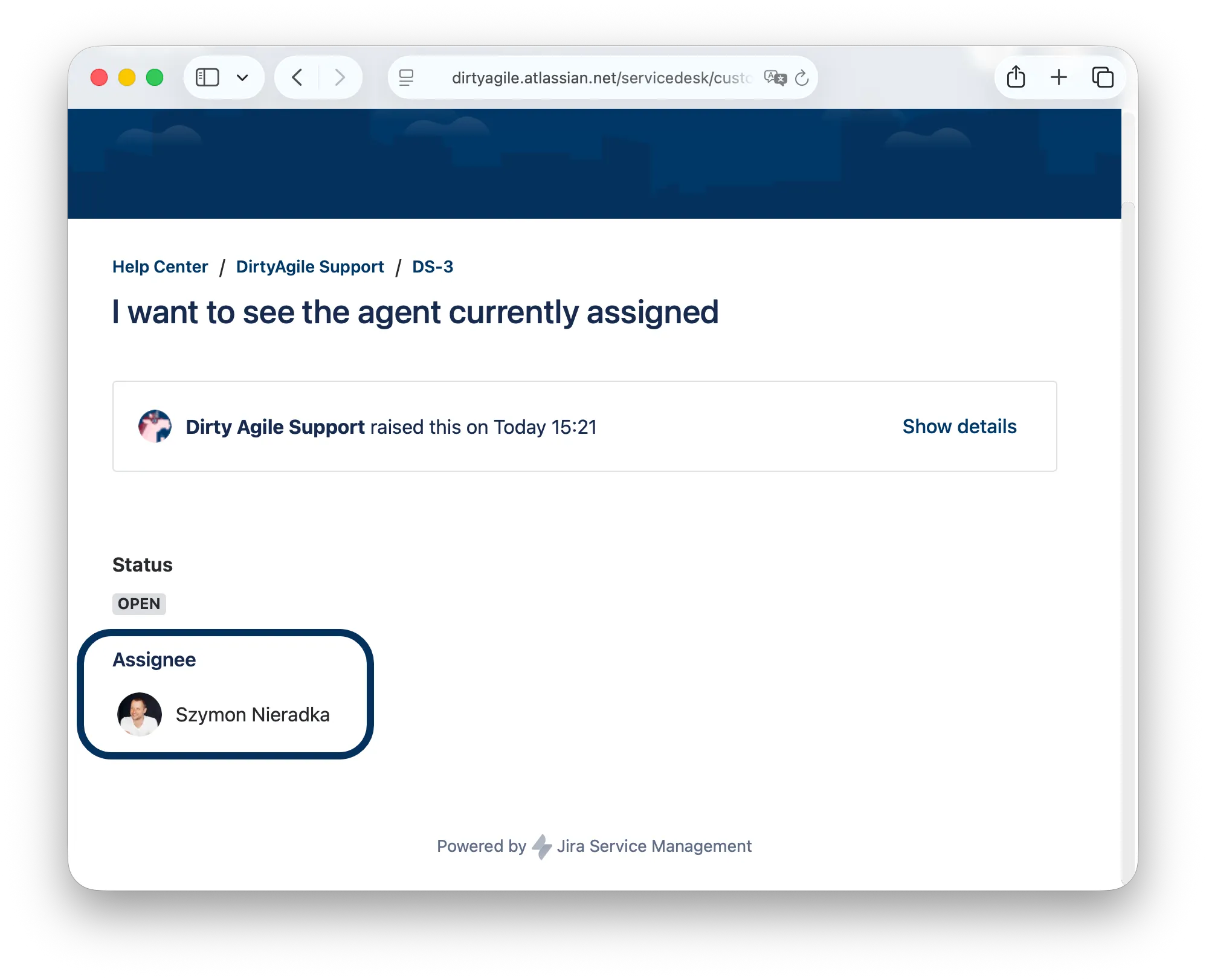
Assignee
Shows the agent currently assigned to the request — name and avatar — on every request detail page.
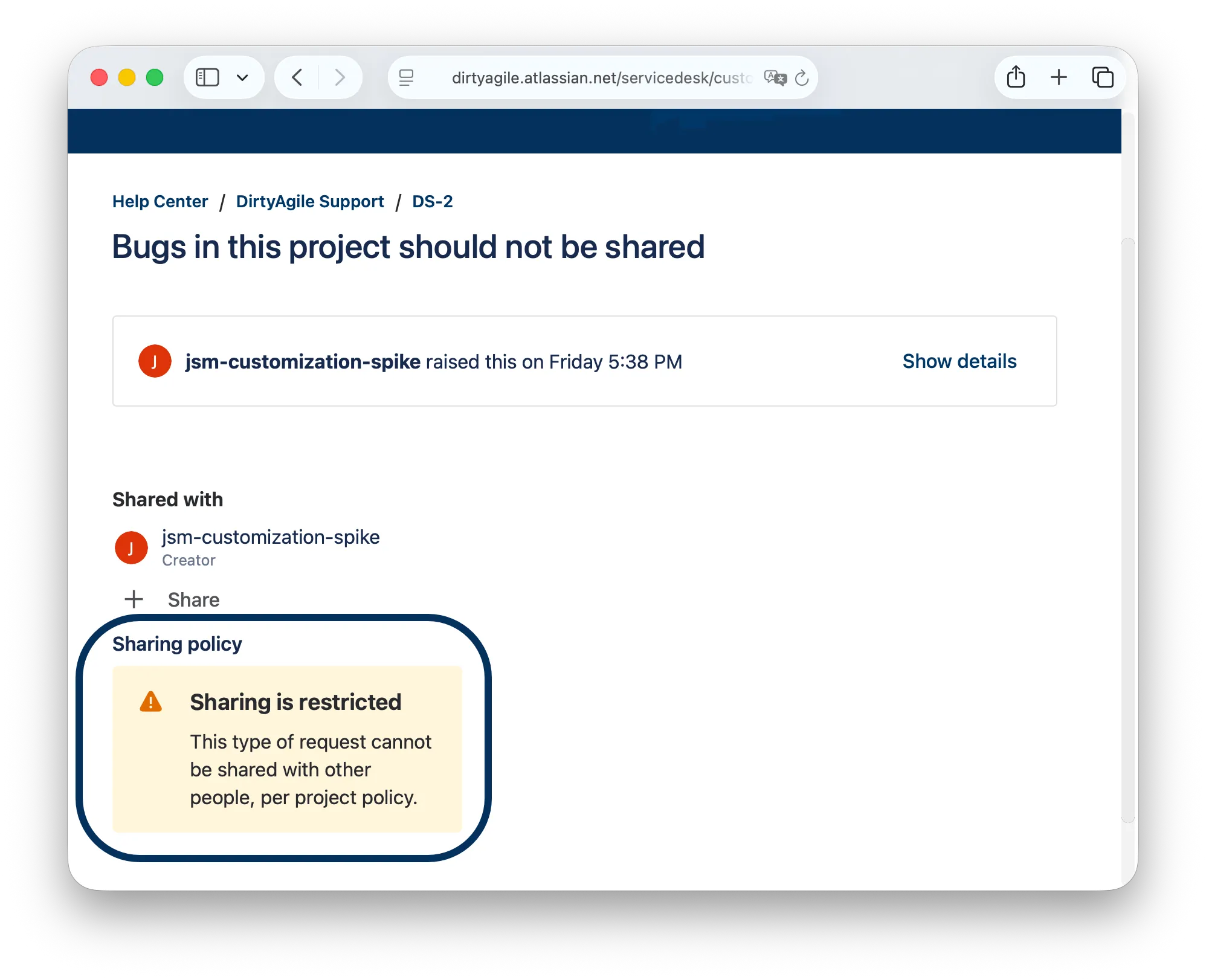
Sharing policy
Tells the customer whether the request type can be shared with other people, and automatically removes any participant added to a restricted request anyway.
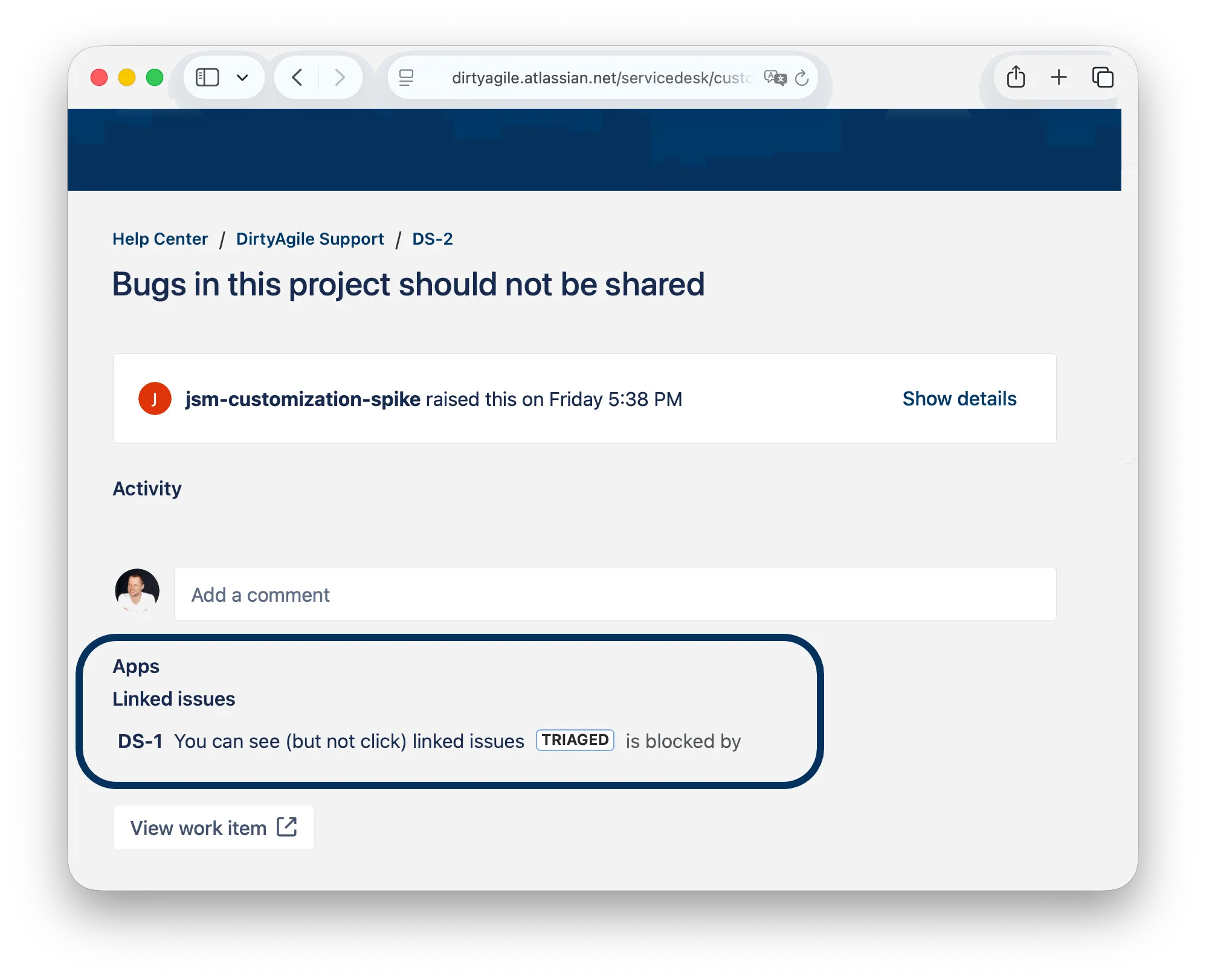
Linked issues
Lists issues linked to the request — duplicates, related tickets, blockers — the same way agents already see them inside Jira.
All three are per-request type, not global: an admin picks which request types show which panel from the app's Configure page. The Assignee and Sharing policy panels render as two separate titled panels stacked under Apps in the request's side panel; Linked issues renders full-width below the Activity section.
Key features, in detail
1. Assignee panel
Jira already tracks who's assigned to an issue — the Portal just never shows it. This panel closes that gap: it displays the assigned agent's name and avatar, updating whenever the assignment changes. On by default for every request type; an admin can turn it off per request type from Configure.
2. Sharing policy notice + automatic revert
By default, JSM lets any requester share a request with other people — fine for most requests, not always fine for HR or compliance-sensitive ones. An admin can flag a request type as restricted; customers viewing a restricted request see a clear "Sharing is restricted" notice instead of "Sharing is allowed".
Jira's platform gives apps no way to disable the native Share button itself, so the app enforces the policy reactively: the moment someone is added as a participant on a restricted request, the app detects it and removes that participant again — usually within seconds, but up to a few minutes in the worst case (a Forge event-delivery limit, not something this app controls). This reduces exposure, it doesn't eliminate it: Jira sends its own "you've been added" notification email, naming the request, before any revert can happen.
3. Linked issues panel
Agents see duplicate/related/blocking issue links inside Jira; customers on the Portal never did. This panel lists the same links below the request's Activity feed. It reads the links using the requesting customer's own permissions, so it only ever shows a link the customer could already see under Jira's own permission model — never one the app's own service account can see but the customer can't. On by default; an admin can turn it off per request type.
Setup
Install JSM Portal Extras
Install the app from the Atlassian Marketplace onto your Jira Cloud instance (JSM must be enabled on the site).
Open the app from Manage apps
In Jira: Settings → Apps → Manage apps → JSM Portal Extras. The app's row shows two buttons — Get started (overview) and Configure — rather than an entry in the admin sidebar.
Pick a service desk and set toggles per request type
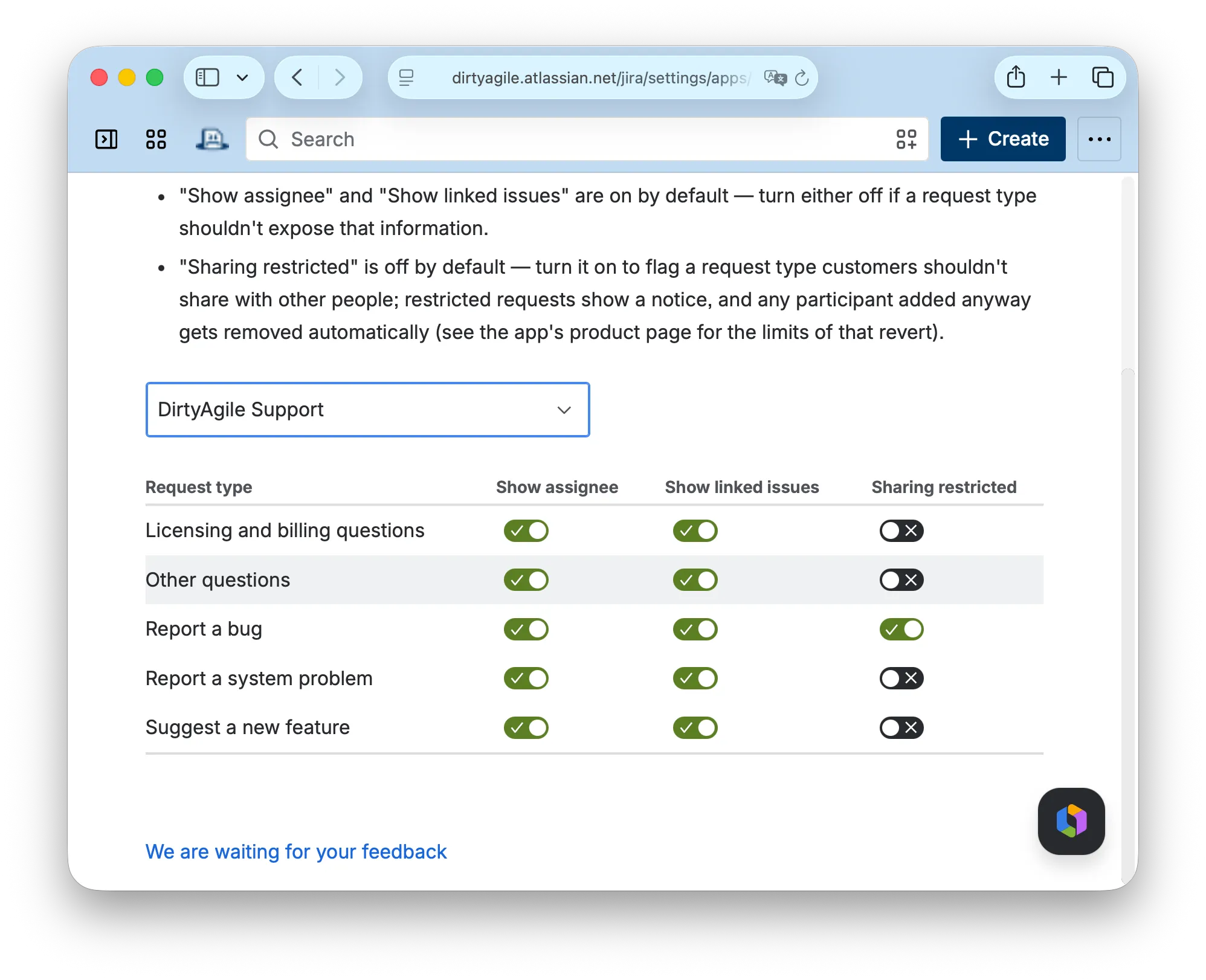
Open Configure, choose a service desk from the dropdown, and set the three toggles for each request type: Show assignee, Show linked issues (both on by default), and Sharing restricted (off by default). Changes apply immediately — no redeploy or reinstall needed.
How to test — step by step
All three panels render on the Customer Portal (the customer-facing request view), not inside the agent view of an issue. Use a JSM project with the portal enabled, and view requests either as a customer account or via Preview as customer from an agent view.
Verify the assignee panel
In Jira, assign an agent to an existing service desk request. Open the same request on the Customer Portal — the Assignee panel under Apps should show that agent's name and avatar. Change the assignee in Jira and refresh the portal page — the panel updates. Turn off Show assignee for that request type in Configure and refresh — the panel disappears.
Verify the sharing policy notice and revert
In Configure, turn on Sharing restricted for a request type, then open a request of that type on the portal — the Sharing policy panel should read "Sharing is restricted". For a request type left off, it should read "Sharing is allowed".
To verify the revert: on a restricted request, use JSM's native Share action to add a participant. Wait up to a few minutes and refresh the request in Jira — the added participant should be removed automatically. (The participant's own "you've been added" email is still sent immediately — this is a known platform limit, not a bug.)
Verify the linked issues panel
In Jira, link another issue to the service desk request (e.g. "relates to" or "is blocked by"). Open the request on the Customer Portal and scroll below Activity — the Linked issues panel should list the linked issue, matching what an agent sees inside Jira. Turn off Show linked issues for that request type in Configure and refresh — the panel disappears.
Common questions
Why can't the app just disable the Share button?
Forge doesn't expose an API to remove or disable JSM's native Share control on the Customer Portal. The app works around this by reacting after the fact — detecting a new participant on a restricted request and removing them again — rather than preventing the share outright.
Do the panels work for unlicensed installs?
The three portal panels are shown to customers, not to the licensed admin's own users, so they're built to fail silently (render nothing) rather than show a "renew your license" message to an external customer. The license banner and toggles on the admin-only Configure page follow the normal licensing flow.
What data does the app access?
The app reads issue and service desk request data (read:jira-work,
read:servicedesk-request) to show the assignee and linked
issues, and writes only to remove a participant it added in error on a
restricted request (write:servicedesk-request). Per-request-type
settings are stored with Forge Storage (storage:app) —
there's no external server and no data leaves Atlassian's
infrastructure.
Can a customer see a linked issue they shouldn't?
No — the Linked issues panel reads links using the requesting customer's own Jira permissions, not the app's own service account. If the customer couldn't already see a linked issue inside Jira, it's left out of the panel.
In October 2021 we were deeply moved by the situation at the Polish-Belarus border where thousands of people were trapped at the center of an intensifying geopolitical dispute.
We decided to pay 10% of our revenue (not profit, revenue) to a coalition of human rights organizations Border Group. The group includes people we know in person, as well as members of the Helsinki Foundation for Human Rights.
In February 2022 the border crisis seemed to shade. But as we all know it was replaced by something much worse. We hoped we would never use word “war” in this context.
We donate help for fighting Ukraine. Either through NGOs or via our network of friends who are personally involved in the matter.